Troubleshooting Breeze eSIM Activation Issues in India
10/11/2026
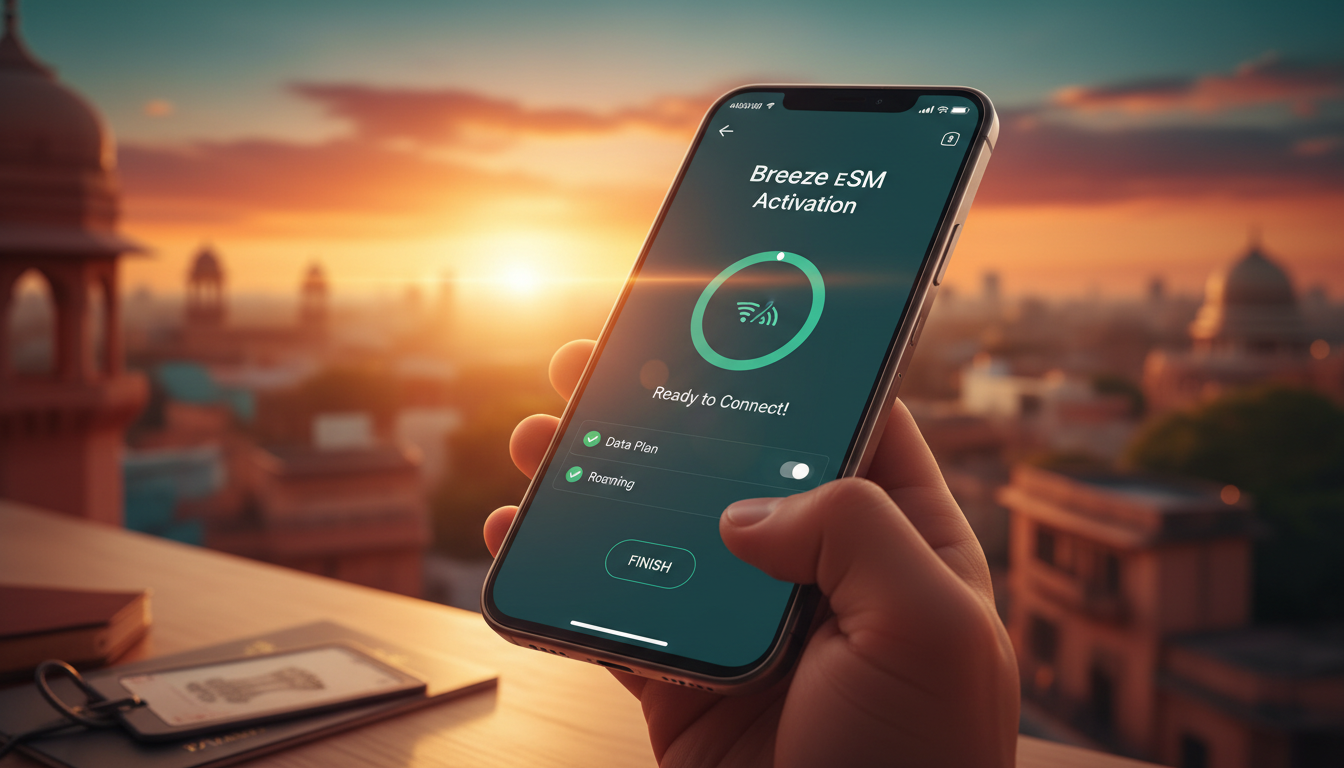
Troubleshooting Breeze eSIM Activation Issues for Reliable Travel Connectivity
Activating a Breeze eSIM can be a smooth way to stay connected during your trip, but hiccups sometimes happen that disrupt your plans. If you’re preparing for travel in India or beyond and want to avoid connectivity headaches, understanding common activation pitfalls and how to fix them is essential.
I always start by pinpointing the exact step where activation stalls because the cause often lies in a simple misstep or device setting. Here’s a practical guide to resolving Breeze eSIM activation issues so you can enjoy seamless data access without swapping physical SIM cards.
Common Activation Problems and How to Fix Them
QR Code Scanning Fails or Is Not Recognized
One of the first hurdles travelers face is scanning the Breeze eSIM QR code. This code contains the profile needed to install your data plan on your device.
- Condition: Using a phone camera app that does not support QR scanning or poor lighting conditions.
- Mechanism: The device fails to detect or decode the QR code, preventing profile download.
- Consequence: Activation cannot proceed, leaving you offline.
How to fix it:
- Use your phone’s native camera app if it supports QR scanning or a trusted QR scanner app.
- Ensure good lighting and hold the camera steady about 6 inches from the QR code.
- If scanning still fails, download the QR code image on another device and transfer it via email or cloud storage for scanning.
eSIM Profile Installation Does Not Complete
After scanning, your device attempts to install the eSIM profile. Sometimes this step hangs or errors out.
- Condition: Device software is outdated or incompatible with Breeze eSIM profiles.
- Mechanism: The operating system’s eSIM manager cannot process the profile correctly.
- Consequence: The profile remains uninstalled, and no data plan activates.
How to fix it:
- Check that your device runs a supported OS version: iOS 12.1+ for iPhones, Android 10+ for most Android phones.
- Restart your phone before attempting installation again.
- Remove any previously installed conflicting eSIM profiles that might block new installations.
- Refer to Breeze’s official help on how to install a Breeze eSIM for device-specific instructions.
Data Plan Does Not Activate After Installation
Sometimes the profile installs but your data plan doesn’t activate immediately upon arrival or connection.
- Condition: Activation timing mismatch—installing too early or network registration delays.
- Mechanism: Breeze eSIM plans only start consuming data once you arrive at the destination or manually activate them.
- Consequence: You see no data connectivity despite having an installed profile.
How to fix it:
- Install your Breeze eSIM before travel but wait until you land in India (or your destination) before activating data usage. According to Breeze’s policy, data consumption begins only upon arrival.
- Toggle airplane mode off and on after landing to prompt network registration.
- If issues persist, manually select a local network operator in your phone’s mobile network settings.
Key Technical Observations from Practitioners
-
When installing an eSIM on Android devices, I’ve noticed that if you try installing multiple profiles simultaneously, the system may freeze or reject new profiles. Installing one at a time with a restart between attempts avoids this trap.
-
On iPhones, if you attempt to change cellular plans during peak network congestion (e.g., busy airport Wi-Fi), the activation server response can timeout, causing errors. Waiting until you have stable cellular reception improves success rates.
-
A frequent mistake is neglecting to disable physical SIM cards during activation. Some phones prioritize physical SIMs over eSIMs by default, leading to no data connection on the new plan even though it’s installed. Switching off the physical SIM temporarily forces the phone to use the Breeze eSIM data plan.
Managing Your Breeze eSIM Account and Data Plans
Breeze offers flexible data plans ranging from 1GB up to unlimited options valid in over 190 countries. You can purchase plans valid for durations from 1 day up to 12 months after purchase, making them ideal for both short trips and extended stays.
The cost of a Breeze eSIM varies by country and plan size; for example, unlimited daily plans are available starting at $3.99 in some countries like the Netherlands and Slovakia. Smaller data packages such as 1GB for 7 days also start around $3.99 depending on location.
To manage your account:
- Use Breeze’s online dashboard or app to top up data or check remaining balance.
- Plans automatically expire after their validity period; unused data does not roll over.
- You can install multiple regional plans but only one active at a time per device profile.
Device Compatibility and Coverage Considerations
Best Devices Compatible with Breeze eSIM
Breeze supports most modern smartphones with embedded SIM capability:
| Device Type | Minimum OS Version | Notes |
|---|---|---|
| iPhone | iOS 12.1+ | Models from iPhone XS onward |
| Android Phones | Android 10+ | Must support GSMA SGP.22 spec |
| Other Devices | Varies | Tablets and laptops with eSIM |
The GSMA specification SGP.22 governs remote provisioning of eSIMs like Breeze’s, ensuring interoperability across compliant devices.
Coverage Area of Breeze eSIM Services
Breeze provides multi-network coverage in over 190 countries worldwide, including India’s major operators like Jio, Airtel, and Vi through roaming agreements. This broad coverage means you typically get local speeds and reliable connections without swapping physical SIM cards.
However, coverage quality depends on local network availability and signal strength:
- In rural or remote areas of India, coverage may be patchy despite multi-network support.
- Urban centers generally offer robust LTE/5G connectivity with Breeze eSIMs.
If you want detailed insights on which Indian networks perform best with an eSIM setup, I recommend checking my guide on the best eSIM for India travel.
Practical Tips for Smooth Activation of Your Breeze eSIM
-
Install Before Arrival But Activate Upon Landing: Installing early avoids last-minute stress; just don’t start using data until you reach your destination.
-
Keep Your Device Updated: OS updates often fix bugs related to eSIM management; outdated software is a common cause of activation failure.
-
Disable Physical SIM Temporarily If Needed: This forces your phone to prioritize the new eSIM connection during setup.
-
Use Official Support Channels: Breeze has detailed help articles and customer service reachable via their contact page if problems persist beyond basic troubleshooting.
-
Check Your Phone’s Network Settings: Manual network selection can resolve registration issues when automatic connection fails after installation.
-
Avoid Multiple Simultaneous Installations: Install one profile at a time per device reboot cycle to prevent conflicts.
By following these steps carefully, I’d advise against rushing through activation without verifying each stage—taking time ensures you don’t lose precious connectivity when you need it most while traveling internationally with a Breeze eSIM.
For travelers prioritizing unlimited data options in India alongside Breeze, exploring other providers through MyBestSim’s comprehensive comparison can reveal competitive prices and promo codes tailored for longer stays or heavier usage patterns like streaming or video calls (see unlimited India eSIM options).
This troubleshooting approach helps avoid common pitfalls in activating a Breeze eSIM so you stay connected effortlessly during your travels without roaming surprises or costly delays.
FAQ
Why does my Breeze eSIM QR code fail to scan?
QR code scanning can fail due to poor lighting or using a camera app without QR support. Use your phone’s native camera or a trusted QR scanner app, ensure good lighting, and hold the camera steady about 6 inches from the code for best results.
What should I do if the eSIM profile installation hangs?
If installation stalls, check your device runs iOS 12.1+ or Android 10+. Restart your phone, remove conflicting eSIM profiles, and try again. Following Breeze’s official installation guide can also help resolve device-specific issues.
How can I activate my data plan after installing the Breeze eSIM?
Install the eSIM before traveling but activate data only after arriving at your destination. Toggle airplane mode off and on to prompt network registration, or manually select a local network if automatic activation doesn’t occur.
Which devices are compatible with Breeze eSIM service?
Breeze supports iPhones running iOS 12.1+ (iPhone XS and newer) and Android phones with Android 10+ that comply with GSMA SGP.22 specs. Tablets and laptops with eSIM capability may also be compatible depending on their OS.
How can I avoid connectivity issues during Breeze eSIM activation?
To prevent issues, install your eSIM before arrival but activate it upon landing, keep your device updated, disable physical SIM temporarily if needed, avoid installing multiple profiles simultaneously, and use Breeze’s official support if problems persist.

Anjali Rao
Anjali is a travel and technology writer who has criss-crossed India by train, plane and rickshaw. At India eSIM she tests travel data plans on Jio, Airtel and Vi and explains how visitors can stay online affordably from Delhi to the backwaters of Kerala.